 24/7 Customer
Support
 Free Express Shipping 24/7 Customer
Support Free Express Shipping

Cable TV bills tend to climb and many homes in Canada are now seeking alternatives such as internet TV. Amazon Fire TV stick would be great for this purpose. This device is affordable, occupies hardly any space and installation time is short. In this blog we will cover how to install IPTV on Firestick in Canada from start to finish.
IPTV stands for Internet Protocol Television. This means that the videos are streamed via your home internet connection to your computer rather than via cables or satellites. As soon as you have subscribed, the company provides you with access in the form of either an app login or a playlist link. Vois IPTV, for instance, puts up instructions and help lines on their website and that can be very useful since it is your first time.
Canadians make way for this service for some practical reasons:
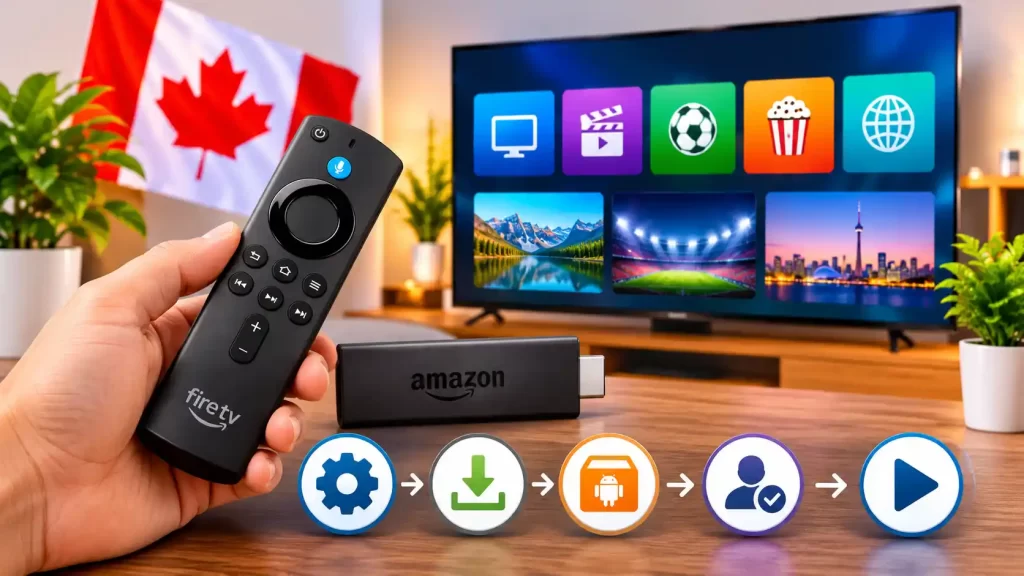
Fire TV Stick is small enough to hide behind the TV and inexpensive enough to purchase for a guest bedroom. It is powered by an ordinary power adapter. The remote control comes with a voice search function which makes app discovery easy and quick.
Some key things for Canadian consumers include:
It makes sure that the living room remains organized. No additional box, no cable mess and switching the stick to a different TV takes just about a minute.
These should be in place prior to getting started:
Get your IPTV plan right first thing. Check for the number of screens that can stream simultaneously, the video resolution offered, the monthly fee and speed of service response. A dependable IPTV service offering its services to the users of IPTV Canada spells out its terms of business clearly.
Tap on Settings, followed by My Fire TV and then Developer Options. Turn on the function that enables installation of apps from unknown sources. It may be called differently depending on the version of your software.
Return to the main screen and launch Find. Search for Downloader, click on the app and hit Download. Once the process is completed, install the program and agree to the permissions that it asks for.
Use the Downloader app, enter the link provided by your IPTV provider and press Go. Once the file is downloaded, press Install. Vois IPTV and most other providers provide such a link via welcome letter or customer’s account page.
Launch the installed application and log in using your username and password or entering the playlist link provided by your IPTV service. Wait until all data is loaded.
Launch several streams and make sure that the image is clear and that the sound matches the video. If everything seems fine, you are ready to go.
Setting up IPTV on an Amazon Fire TV Stick involves preparing your device, installing a compatible player, entering your service credentials and testing playback. Follow each stage carefully before starting.
Here is a quick look at the main installation stages, actions and estimated time required for each step.
| Installation Stage | What You Need to Do | Estimated Time |
|---|---|---|
| 01. Preparation | Connect Firestick and check your internet | 1 Minute |
| 02. Device Settings | Review app installation permissions | 1 Minute |
| 03. Downloader | Install Downloader if required | 2 Minutes |
| 04. IPTV Player | Install a compatible IPTV application | 3 Minutes |
| 05. Activation | Enter your authorized login credentials | 2 Minutes |
| 06. Testing | Check channels, sound and video playback | 2 Minutes |
Explore Vois IPTV subscription options and review available packages, supported devices and service information before choosing your plan.
View IPTV Plans & Buy Now →Communicate with legitimate firms and install apps via the links supplied to you by them. Canadian copyright law governs streaming, so make sure that the provider has the license to deliver its content. A reliable VPN will help protect you when using public Wi-Fi, but it shouldn’t be used to bypass geographical restrictions illegally. Don’t enter your payment information on an untrusted website.

Looking for an IPTV service in Canada? Vois IPTV gives viewers an option to explore internet television packages. Review available content, supported devices and subscription conditions before getting started.
Choosing an IPTV service involves more than installing an application. Compare these important factors before selecting a subscription.
| Feature | What to Check | Benefit |
|---|---|---|
| Channel Selection | Canadian, international and regional content | Find content that matches your interests |
| Streaming Quality | Available HD and 4K resolutions | Understand your viewing options |
| Firestick Support | Compatible applications and setup instructions | Check your device compatibility |
| Multi-Device Support | Smart TV, Android and other supported devices | Choose a suitable viewing device |
| Customer Support | Installation help and troubleshooting | Get assistance when needed |
| Service Information | Pricing, renewal and content licensing | Make an informed purchase |
Review the supported Fire TV Stick models, application requirements and installation instructions before subscribing.
A stable internet connection and suitable bandwidth help provide a smoother streaming experience.
Follow the appropriate setup instructions and check available support resources when installing your IPTV player.
Compare available subscription durations, package features and renewal conditions before making your decision.
Discover the available Vois IPTV packages for Canadian viewers. Compare subscription details, check device compatibility and choose an option that suits your needs.
🛒 Buy Now – Explore IPTV Plans Explore Vois IPTV →Do a speed test, move the router closer or use a cable to connect. Lowering the video quality in the player is another trick.
Make sure unknown sources are enabled and ensure there is storage space. Clear out unused applications and install the file anew.
Double check your login information, as one space will cause all problems. If you still have issues, contact the provider’s support desk.
Setting up IPTV on Firestick in Canada will only take around ten minutes once you have completed all the necessary preparations. Get yourself a reliable IPTV Plan and follow all the procedures in setting it up. Make sure to compare Vois IPTV with other IPTV Canada services before making payment.
