 24/7 Customer
Support
 Free Express Shipping 24/7 Customer
Support Free Express Shipping

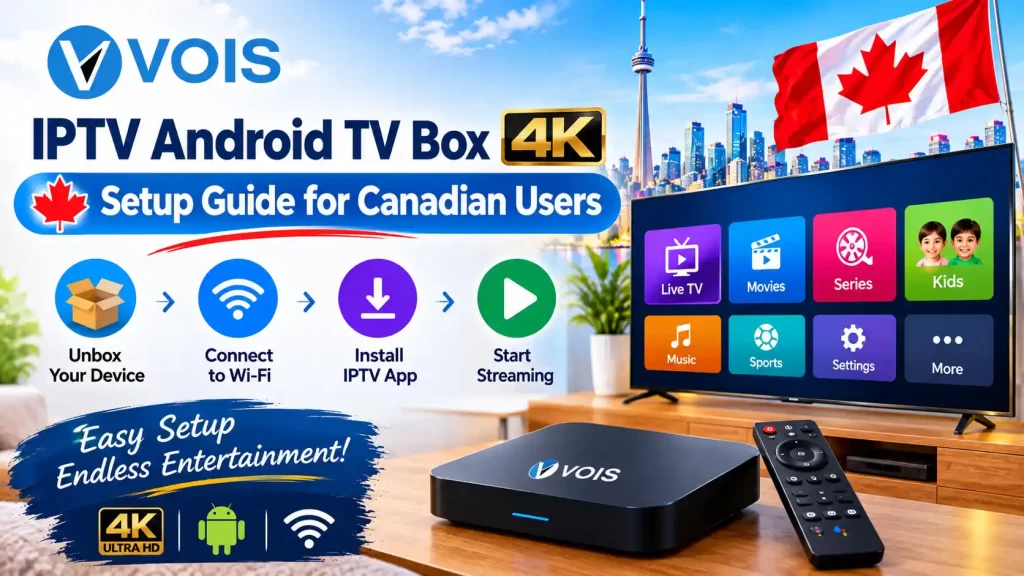
More Canadian households are ditching cable boxes for something smaller, cheaper and honestly more capable: the IPTV Android TV Box. If you’ve been eyeing one but aren’t sure where to start, this guide covers the setup process from unboxing to fine-tuning your 4K picture, along with the practical stuff — troubleshooting, provider selection and what actually matters when you’re picking a service.
At its core, an IPTV Android TV Box is just a small device running Android that lets you install streaming apps and pull in live TV, movies and series over your internet connection instead of a cable line. It skips the cable company entirely and depending on the apps you load, you can access channels from Canada, India, Pakistan, Europe and beyond.
For a lot of Canadian families, this has quietly replaced the cable subscription — particularly once you pair the box with a solid IPTV Service such as Vois IPTV.
Enjoy a complete entertainment experience with Vois IPTV. Get access to 15K+ channels and 50K+ VOD titles, including movies and content in multiple languages. Choose a flexible IPTV subscription designed for viewers across Canada.
Explore Vois IPTV subscription options for viewers across Canada.
A few reasons keep coming up when people explain why they made the switch:
As IPTV Canada options keep growing, this shift from cable to streaming boxes isn’t slowing down anytime soon.
Hook the box up to your TV with an HDMI cable, plug in the power, then connect it to your Wi-Fi — or better yet, run an Ethernet cable if you can. A wired connection makes a noticeable difference once you start streaming in 4K.
The device will walk you through signing into a Google account, picking your language and connecting to the internet. Nothing complicated here — it’s the same setup flow as any Android device and it’s what lets you download apps or sideload IPTV players afterward.
Find and install the app your subscription actually runs on. Plenty of Canadian users go with something like Vois IPTV for this, since it comes with organized channel packages and hasn’t given people much trouble with stability.
Enter the username and activation code provided by your provider. If you haven’t selected one, most providers will allow you to try out IPTV free trial, so that you can see whether you want to subscribe to IPTV or not.
Dig into the settings menu and bump the resolution up to 4K if your TV supports it — this step gets skipped more often than you’d think. Match the audio output to whatever setup you’re running, whether that’s a basic TV speaker, a soundbar or a full home theatre system.
| Setting | Recommended Configuration | Why It Matters |
| Internet Speed | Minimum 25 Mbps | Keeps 4K playback from stuttering |
| Connection Type | Ethernet (preferred) | Cuts down on lag and dropouts |
| Display Resolution | 3840 x 2160 (4K) | Matches what 4K content actually needs |
| Audio Output | Dolby Digital/HDMI ARC | Makes sound noticeably clearer |
| App Cache | Cleared weekly | Keeps the app running smoothly |
Even a properly set up IPTV Android TV Box runs into hiccups now and then. A few quick fixes:
Not every IPTV Service stacks up the same way. Before locking in a provider for your IPTV Android TV Box, Canadian users should look for:
Vois IPTV has built a decent name for itself among IPTV Canada users specifically because it delivers steady streaming and a content library that fits multicultural households well.
“`htmlTrusted IPTV service across Canada
Getting an IPTV Android TV Box running properly isn’t complicated once you know the steps. Set it up right, tune your settings and pick a provider that’s actually reliable and you’ll end up with smooth 4K streaming and a channel selection cable never came close to matching. Whether you’re replacing cable outright or upgrading an older streaming setup, spending a bit of time on the configuration now saves you headaches later.
