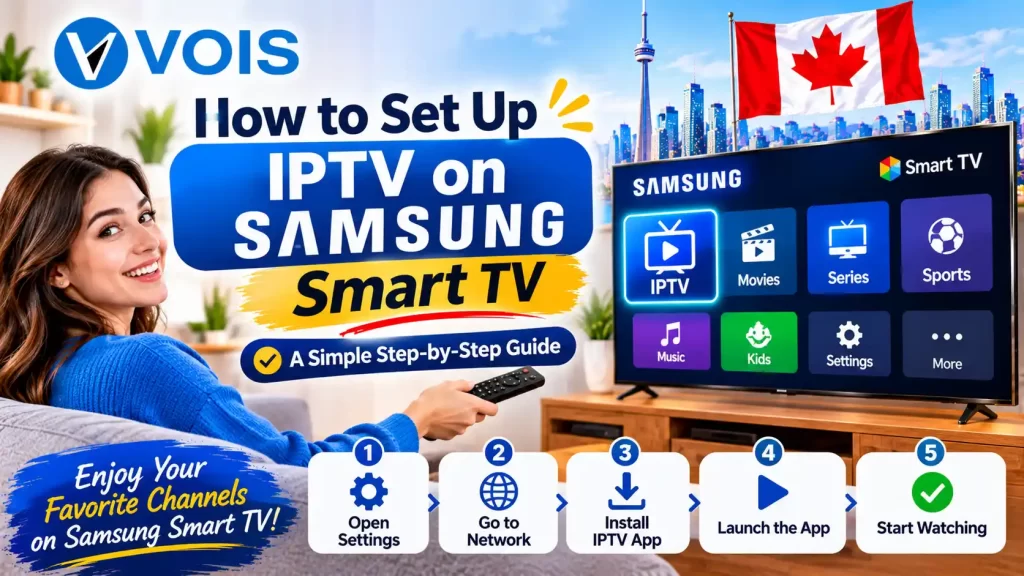
Prices of cable increase each year and lots of people get frustrated with this trend. Television can be received via the broadband internet line which delivers emails. The Samsung television is also compatible with this kind of service. Below is how to configure IPTV on Samsung Smart TV without the assistance of a technician. It will take about half an hour.
Enjoy IPTV Entertainment on Your Samsung Smart TV
Samsung Smart TVs offer a convenient way to enjoy internet-based
entertainment on a larger screen. With a compatible IPTV
application and a stable internet connection, viewers can
explore live TV and on-demand content without necessarily
connecting an additional streaming box.
If you are exploring IPTV options in Canada, check the
supported applications, device requirements, and service
compatibility before getting started.
📡
Internet-Based Viewing
IPTV delivers television content through an internet
connection instead of traditional cable or satellite.
📺
Big-Screen Experience
Enjoy compatible live TV and on-demand entertainment
directly on your television screen.
⚙️
Simple Setup
Use a compatible application and follow its setup
instructions to get your service ready.
Before installing: Samsung Smart TVs use
the Tizen platform, and available apps can vary by model
and region. Make sure your selected IPTV app and service
support your television before proceeding with installation.
Viewers looking for IPTV options in Canada can also explore
Vois IPTV and review its service information,
device compatibility, available content, and subscription
details to determine whether it suits their requirements.
What Is IPTV and Why Does It Suit Samsung Televisions?
IPTV stands for Internet Protocol Television. It comes via data through your internet connection. Thus, you will have no aerial installed in your roof nor dish attached to the wall. The TV sets made by Samsung work with an operating system known as Tizen and it manages the streaming applications perfectly.
Some common observations from the viewers include:
Live shows, recordings and movies can be viewed under one menu list
No installation of any sort is required – nothing needs to be drilled or wired
In most Samsung TV models, there is no other device required
You will be able to pause, rewind and resume watching a program
People looking out for IPTV services in Canada usually provide these reasons. They require short term deals, cheap monthly rates and a high quality viewing experience on large screens.
Things to Check Before You Start
Ten minutes taken to confirm will save you an evening of frustration.
Compatible Samsung Models
All Samsung TVs manufactured since 2016 have Tizen OS and all such TVs can be used with most third-party media players. If your TV is manufactured before 2016, then you should choose something else because these TVs have another OS. Go to Settings > Support > About this TV.
Internet Speed and Account Needs
Requirement
Minimum
Recommended
HD streaming speed
8 Mbps
15 Mbps
4K streaming speed
25 Mbps
40 Mbps
Connection type
Wi-Fi
Ethernet cable
Samsung account
Required for downloads
Signed in beforehand
Subscription
Active IPTV Plan with a playlist link
Provider with trial period
Step-by-Step Guide: IPTV on Samsung Smart TV
There are three ways of doing this. The first method is suitable for almost everyone, so give it a shot first.
Method 1: Install a Player App From the Samsung Store
Click “Home” on your remote control to access Apps.
Click on the magnifying glass icon and type in the name of any of the IPTV Player apps.
Choose the one that is rated highly and updated recently and tap Install.
Open the application and note the MAC address or device code that is displayed.
Enter the code at the site of the application developer and copy/paste the playlist URL provided by your service provider.
Close the program and start it again to see your channel list filled.
Method 2: Sideload Through Developer Mode
Use this method only when the intended app is not available in the store.
Go to Apps and then use the remote control and enter 1, 2, 3, 4, 5.
Turn Developer Mode ON and then provide the IP address of your computer.
Reboot the TV.
Transfer the app package from your computer using Samsung Developer tools.
Allot around ten minutes. The following is one caution that should be considered. Install files should be downloaded from reliable sources due to malware being present in some packages.
Method 3: Add an IPTV Box
If you own an old Samsung, an IPTV Box can be connected via any available HDMI port. Change the input on your TV and enter all network details, along with your account information. You pay more for this device, but it’s compatible with just about any display.
Choosing the Right IPTV Plan
Among all things mentioned above, the subscription plan will play a key role in influencing your everyday experience. This means that you need to put some effort into the consideration of the IPTV Plan prior to the payment for it.
Price is not the only thing you should think about. These issues should come first:
Stream stability: Choose the service that discloses its uptime and offers the option of trial.
Quality: It is important that both HD and 4K streams are provided.
Device limit: Inquire what is the number of devices that can be used at once.
Support: The company that responds in one day is more valuable than the inexpensive one that never responds.
Legitimacy: All individuals considering IPTV Canada service providers should select the legitimate one.
Common Problems and Quick Fixes
Continuous buffering: Try to get nearer to your router or try connecting using an Ethernet cable.
App doesn’t start: Go to the Settings option under Apps and clear the app cache, then restart the TV.
Playlist doesn’t play: Verify that there isn’t an additional space or a missing character in the link.
No audio and video: Check if the input source is correct or if there’s any update for the app.
Sound is out of sync: Alter the Audio delay setting in Sound settings.
Tips for a Better Viewing Experience
Choose either Movie or Standard picture settings for true colours.
Put your router in plain sight or use a mesh extender in case of large rooms.
Get Tizen updates through Settings > Support and Software Update.
Create a playlist in the player where your favourite shows would be the priority.
Reboot the TV once a week. This will refresh its memory and apps.
Final Thoughts
IPTV installation on Samsung Smart TV basically entails three criteria – having an appropriate model, reliable connection and a subscription from a trustworthy source. By following the steps sequentially, one can do away with the need for a cable box forever. In case your intention is to reduce monthly bills or even have a tidy environment, IPTV on Samsung Smart TV is the right option. Ensure your subscription gets annual review.
Frequently Asked Questions
Navigate to the “Apps” section, find an IPTV player application and install it. Launch it, copy the device code provided by the application, paste your provider’s playlist URL in the website of the app and relaunch it.
Yes, mostly. All models after 2016 use Tizen, which allows these applications. But older models usually do not have a compatible one, so a streaming device that is plugged via HDMI would be a reasonable solution.
Not usually. A newer Samsung will play media applications using the device itself. It is only sensible to have a box if your TV is pretty old, low on memory or cannot install your desired application.
Target 8 Mbps for HD and 25 Mbps for 4K. The cable network is more durable than Wi-Fi especially during evening hours when everybody in the house is using the internet simultaneously.
The technology is legal. The important thing is the source of the content. Opting for a licensed supplier in the IPTV Canada marketplace ensures that everything is done legally, while piracy services face copyright issues and your personal information.
It could be because of low bandwidth, poor Wi-Fi signals or server overload. Take a speed test, switch to cable internet, close unnecessary applications and reset your router. If the issue still exists, you should call your ISP.
 24/7 Customer
Support
 Free Express Shipping